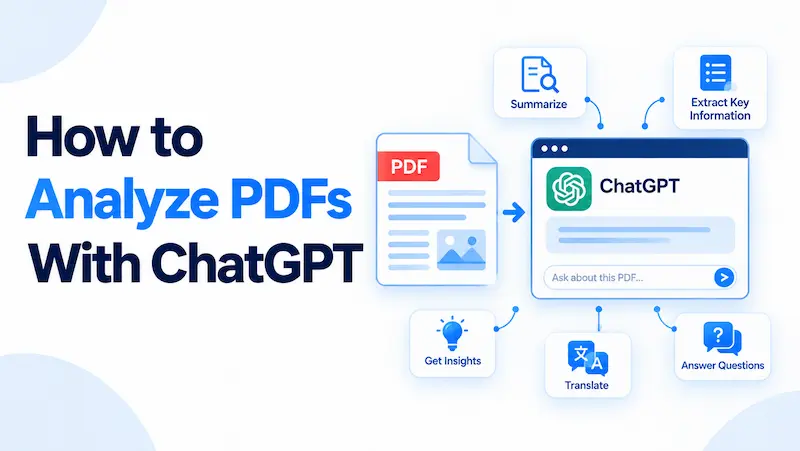
How to Analyze PDFs With ChatGPT
Reading through a long PDF to find the one figure, clause, or conclusion you actually need takes time most people no longer have. ChatGPT can read uploaded PDF files directly in the chat window, answer questions about their contents, pull specific data, summarize sections, and reformat what is inside into something you can act on. It is what converts a static document into a resource you can interrogate. It is why legal, finance, academic, and business teams are using it as a first pass on documents before diving into a full read.
Key Takeaways
- PDF uploads are available on all ChatGPT plans including the free tier, though free users are limited to three uploads per day and the limits may be reduced during peak hours.
- You upload a PDF through the paperclip icon in the chat box and can pull files from your device, Google Drive, or Microsoft OneDrive.
- ChatGPT performs three types of PDF tasks: synthesis (combining and analyzing), transformation (rewriting and reformatting), and extraction (pulling specific data, quotes, or references).
- On all plans except ChatGPT Enterprise, embedded images and charts inside PDFs are discarded; only the digital text layer is read.
- The Advanced Data Analysis tool, available on paid plans, can execute Python code on your PDF data to create downloadable files, charts, and calculated outputs.
- Specific prompts that name the section, output format, and audience consistently outperform generic instructions by a wide margin.
The Short Answer
To analyze a PDF with ChatGPT, click the paperclip icon in the chat window, upload your file from your device or cloud storage, type your question or instruction in the same message, and send. ChatGPT will read the document’s text layer and respond. From there, you can ask follow-up questions without re-uploading the file. The free plan allows three uploads per day; paid plans allow significantly more.
What ChatGPT Can Do With a PDF
According to OpenAI’s File Uploads FAQ, the file upload capability supports three core task types: synthesis, transformation, and extraction.
Synthesis covers tasks that combine or analyze document content to produce something new. This includes comparing two contracts for differences in their key terms, analyzing the tone or argument across a research paper, applying a scoring rubric from one document to evaluate another, or cross-referencing three financial reports against each other.
Transformation covers reshaping content without changing its substance. Examples include using ChatGPT to summarize dense text in a technical report, convert a policy document into a step-by-step guide, rewrite a legal clause for a non-lawyer audience, or turn the findings of a research paper into a presentation outline.
Extraction covers pulling specific content out of a document. This includes locating every reference to a particular topic, pulling quotes with their page numbers, listing all deadlines or dates mentioned, extracting table data into a reusable format, or identifying all action items buried across a long document.
Most real-world PDF analysis tasks are a combination of these three. A good prompt often stacks them: “Find every clause that creates an obligation for the buyer [extraction] and rewrite each one in plain English [transformation].”
ChatGPT Plans and PDF Upload Limits
PDF file uploads are available on free and paid ChatGPT plans, subject to plan-specific usage limits and account settings, on the web and in supported mobile apps.
| Plan | Upload Rate | Files Per Project | Visual Retrieval in PDFs |
| Free | 3 files per day | Up to 5 | No |
| Plus | Up to 80 files per 3 hours | Up to 25 | No |
| Pro / Business / Education | Up to 80 files per 3 hours | Up to 40 | No |
| Enterprise | Up to 80 files per 3 hours | Up to 40 | Yes |
All files are capped at 512MB per file. All text and document files, including PDFs, are additionally capped at 2 million tokens per file. OpenAI notes that limits may be reduced during peak hours. Storage caps also apply: 25GB per user and 100GB per organization across all chats, projects, and custom GPT knowledge files.
The most significant plan-tier difference for PDF work is Visual Retrieval. On every plan except ChatGPT Enterprise, ChatGPT extracts only the digital text from a PDF and discards embedded images. This means charts, diagrams, infographics, and image-based tables inside your PDF are not visible to the model. Enterprise users have access to a separate Visual Retrieval with PDFs feature that interprets both text and embedded visuals.
Custom GPTs (available on Plus and above) offer an additional option for recurring document work: you can upload a PDF directly into a Custom GPT’s knowledge base, where it persists across all future conversations with that GPT without needing to be re-uploaded each session.
How to Upload a PDF to ChatGPT
On Desktop (chatgpt.com)
- Sign in to your ChatGPT account and open a new or existing chat.
- Confirm you are using a model that supports file inputs. Paid plans default to GPT-4o. Free users should check the model selector at the top of the chat window.
- Click the paperclip icon on the left side of the message input box.
- Select your source: your computer, Google Drive, or Microsoft OneDrive.
- Choose your PDF. The file name appears as an attachment thumbnail once the upload completes.
- Type your question or instruction in the same message box and send. You do not need to wait for a separate processing step.
- Continue with follow-up questions in the same conversation. The PDF stays available for the life of the session.
On iOS and Android
- Open the ChatGPT app and tap the “+” icon or the paperclip icon next to the message box.
- Select “Files” to upload from your device’s local storage, or choose Google Drive or iCloud Drive (iOS) / Google Drive (Android) to pull from cloud storage.
- Locate and select your PDF.
- Once attached, type your instruction and send.
If the upload icon is missing on mobile, switch to desktop mode in your browser or update the app. Some older app versions do not display the attachment option unless updated.
20+ Ready-to-Use Prompts for PDF Analysis
The examples below are organized by task type. They are written to be copied directly and adapted for your document. Replace text in brackets with your specifics.
Summarization and Overview
“Summarize this PDF in five bullet points. For each point, include the page number where the information appears.”
“Give me an executive summary of this document in three short paragraphs. Write it for a senior manager who will not read the full document.”
“List every recommendation or action item in this PDF. Number them and note the section heading each appears under.”
“What is the main argument of this document? State it in two sentences, then list the three strongest pieces of evidence the author uses to support it.”
Finding Specific Information
“Find every passage in this document that mentions [topic]. For each one, quote the relevant sentence and give the page number.”
“Does this document specify any deadlines, dates, or time frames? List them all with the surrounding context for each.”
“What does this document say about [specific clause, section, or topic]? Quote the relevant passage directly rather than paraphrasing.”
“Identify every named party, organization, or entity in this document and explain the role each plays.”
Data Extraction and Tables
“Extract the table on page [X] and format it as CSV text I can paste into a spreadsheet. Use the exact column headers from the document.”
“List all numerical figures in this document. For each one, include the metric name, the value, and the sentence it appeared in.”
“Find every financial figure in this report, including revenue, costs, margins, and growth rates. Present them in a table with the year and source section for each.”
Comparing Multiple PDFs
“Compare these two documents on the following points: [list three to five specific criteria]. Present the comparison as a table with one row per criterion.”
“What are the key differences between these two versions of this contract? Focus on payment terms, liability, and termination conditions.”
“Which of these three proposals best satisfies the following requirements: [list requirements]? Explain your reasoning for each proposal.”
Rewriting and Transforming Content
“Rewrite Section [X] of this document in plain English. Keep all original obligations and requirements intact but remove technical jargon.”
“Convert the key findings from this report into a ten-slide presentation outline. Include a suggested talking point for each slide.”
“Turn the procedures in this document into a numbered step-by-step checklist a new employee could follow without prior training.”
Legal and Contract Review
“Identify every clause in this contract that creates an obligation for the buyer. List each obligation and the clause number it appears in.”
“Flag any terms in this agreement that deviate from standard commercial practice. For each one, explain what makes it unusual and what risk it could create.”
“Summarize the termination conditions in this contract. Under what circumstances can each party exit, and what notice is required?”
Financial and Business Reports
“Extract all revenue, cost, and profit figures from this report. Present them in a table with columns for year, metric, and value.”
“What risks does this document identify? List each risk and note whether the document describes any mitigation measures for it.”
“Summarize the key performance indicators in this report. For each KPI, note the target, the actual result, and whether performance is above or below target.”
Research and Academic Papers
“What is the central research question of this paper? Summarize the methodology, key findings, and conclusion in plain language.”
“What limitations does the author acknowledge in this study? Quote the relevant section directly.”
“List the main sources this paper cites that relate to [specific topic]. Format each as an APA citation.”
Industry Use Cases
The following scenarios illustrate how different professional users apply ChatGPT PDF analysis. These are representative examples, not documented case studies.
Legal and Contract Review. A contract lawyer uploads a 60-page commercial agreement and asks ChatGPT to identify every clause that creates an indemnification obligation, flag any unusual liability caps, and produce a plain-English summary of the termination rights for their client. The lawyer reviews ChatGPT’s output against the original document before passing it to the client, using the AI to accelerate the first-pass read rather than to replace legal judgment.
Financial Analysis. An analyst uploads three consecutive annual reports and asks ChatGPT to extract the gross margin, operating profit, and revenue figures from each, present them as a comparative table, and flag any year where a metric declined by more than ten percent. The analyst then asks for a plain-language summary of the risk factors section from the most recent report.
Academic Research. A doctoral student can use ChatGPT for research by uploading a 50-page literature review and asking it to list every study that discusses a specific methodology, extract the sample sizes and key findings from each, and flag any studies that contradict the paper’s central claim. The student uses the output to decide which sources need a closer reading.
HR and Policy Documents. An HR manager uploads the company’s employee handbook and a revised draft, then asks ChatGPT to compare them and list every policy that changed, added, or was removed between versions, with the section reference for each change.
Technical Documentation. A product team uploads a user manual and asks ChatGPT to convert the troubleshooting section into a decision-tree format, identifying the symptom, the first diagnostic step, and the resolution path for each scenario described in the document.
The Advanced Data Analysis Tool: What It Does and When It Activates
Advanced Data Analysis (formerly called Code Interpreter) is a built-in ChatGPT tool that writes and executes Python code in a secure sandboxed environment. It allows ChatGPT to analyze and visualize data from uploaded files, test code snippets, and perform complex calculations. It is available on paid plans (Plus, Team, and Enterprise) using GPT-4o.
For PDF work, this matters because it extends what ChatGPT can do beyond reading text. When you ask for a task that requires computation or file creation, ChatGPT will typically invoke Advanced Data Analysis automatically. You do not need to switch modes manually.
Tasks that typically trigger Advanced Data Analysis:
Asking ChatGPT to “convert this table to a downloadable CSV file,” “calculate the average of all profit figures in this report,” or “create a bar chart comparing the revenue figures across these three years” will prompt it to write Python code behind the scenes, execute it, and return the output, including a download link for any files it creates.
Tasks that do not need Advanced Data Analysis:
Standard summarization, question answering, finding quotes, comparing documents in prose form, and rewriting sections all work through normal text processing without invoking the code environment.
Practical implication: If you need structured data outputs from a PDF, such as a clean CSV export of a table or a chart based on figures in the document, a paid plan with Advanced Data Analysis is necessary. Free users can ask ChatGPT to format extracted data as CSV text they can copy and paste, but they cannot request a downloadable file.
Which PDF Types Work Best
Not every PDF behaves the same way in ChatGPT. Choosing your approach based on the document type saves time and avoids avoidable failures.
Text-dominant documents (research papers, contracts, policy documents, reports, manuals): These are where ChatGPT performs best. The full text layer is readable, questions about any section are answered accurately, and the context window accommodates most standard-length documents without issue.
Documents with important tables stored as text: ChatGPT reads these reliably. Ask for extraction and you will get usable output. If the table is stored as an image inside the PDF (a common issue in scanned financial reports), it will not be visible on non-Enterprise plans. Test by trying to highlight text in the table with your cursor in a PDF viewer before uploading; if you cannot highlight it, ChatGPT will not be able to read it either.
Documents where charts or diagrams carry critical information: On non-Enterprise plans, these are invisible to ChatGPT. The practical workaround is to take screenshots of the relevant visuals and upload them as separate image files alongside the PDF. ChatGPT can interpret image files directly even when the same content embedded inside a PDF is inaccessible.
Scanned documents and photographed pages: Accuracy depends on the scan quality. Clear, high-resolution scans of cleanly formatted pages typically produce reliable text extraction. Low-resolution scans, poor contrast, handwriting, or decorative fonts degrade the results meaningfully. For these, running the file through a dedicated OCR tool before uploading to ChatGPT produces better results.
Password-protected PDFs: These cannot be opened. Remove the password before uploading.
Very long documents or document bundles: The 2 million token limit accommodates roughly 1,500,000 words, which is more than most single documents. However, if you are compiling multiple large PDFs into a single analysis session, you may approach the context ceiling. In that case, breaking the analysis into focused sub-tasks, one document at a time, is more reliable than asking ChatGPT to process everything simultaneously.
Limitations to Understand Before You Start
Images inside PDFs are not readable on most plans. This applies to non-Enterprise users. Charts, infographics, photos, and tables stored as images are discarded when the PDF is processed. This is a design characteristic of text-based retrieval, not a bug.
ChatGPT does not fact-check the source document. The model generates its responses based on the text it extracts. If the PDF contains an error, ChatGPT will reflect that error. If a figure is ambiguous or a clause is poorly worded, ChatGPT may resolve the ambiguity in a way that does not match the intended reading. For high-stakes documents, always verify specific claims against the source.
Reading order errors occur in complex layouts. Multi-column documents, side-by-side text panels, documents with heavy footnote use, and PDFs generated from badly formatted Word files often have their text extracted in an order that does not match the visual reading order. Ask ChatGPT to quote passages directly when reading order matters, so you can verify the sequence is correct.
Context limits affect very large archives. While the 2 million token cap is generous, it is finite. If the model stops mid-analysis or misses content from the latter part of a long document, the context limit is the most likely cause. Dividing the document into sections and asking focused questions on each part resolves this.
Uploaded files are subject to OpenAI’s data policies for the plan you use. Consumer plan users should review OpenAI’s data usage policies before uploading confidential materials, as content may be used to improve model performance by default unless you adjust your data controls. ChatGPT Enterprise customers operate under separate contractual terms that exclude content from model training.
When to Use a Dedicated PDF AI Tool Instead
ChatGPT is a strong general-purpose PDF analysis tool. Dedicated tools have meaningful advantages in specific situations, and understanding the distinction helps you choose the right tool for the task rather than forcing every workflow through a single option.
Consider ChatGPT when: you need flexibility across different document types and tasks in the same workflow, you want conversational follow-up questions without switching platforms, you are already using ChatGPT for other work and want to keep everything in one place, or the document is text-dominant and well-formatted.
Consider a dedicated PDF AI tool when: you are managing a large, persistent library of documents that you need to query repeatedly without re-uploading, you need citation-backed responses that anchor every answer to an exact page and paragraph, the PDFs are image-heavy and you are not on an Enterprise plan, or you are working with PDFs that exceed the ChatGPT upload limits for your plan.
Several dedicated tools exist in this space, including Humata, PDF.ai, and ChatPDF, among others. These are built specifically around persistent document storage and citation-anchored responses. This comparison is based on their documented features rather than hands-on testing. Verify current capabilities and pricing directly with each provider before committing to a workflow.
Tips for Consistently Better Results
Specify the section, not just the topic. Asking “What does the contract say about liability in Section 8?” returns a more precise answer and can help you get better answers from ChatGPT than asking a broad question. The more you narrow the scope, the less likely ChatGPT is to average across the whole document.
Ask for direct quotes alongside summaries. Adding “include the relevant quote and page number” to any extraction or summary request lets you verify that the response maps accurately to the source text. This is especially important for legal and financial documents where exact wording carries weight.
Use follow-up questions rather than complex single prompts. Starting with “Summarize this document” and then asking “Now focus on Section 4 and tell me exactly what obligations it places on the licensee” consistently produces better results than trying to request everything in one message.
Break large documents into focused sub-tasks. For a 200-page document, analyze it section by section rather than asking for a full document analysis in a single prompt. The focused outputs are more accurate and easier to verify.
Store recurring documents in a Project. If you return to the same PDF regularly, a ChatGPT Project keeps the file accessible across sessions for Plus users (up to 25 files per project) and pro/business users (up to 40 files per project), saving you from re-uploading each time.
Pre-process difficult PDFs before uploading. For scanned documents, use a dedicated OCR tool to produce a clean text-layer PDF first. The improvement in extraction quality is significant for any document that was not originally created digitally.
Troubleshooting: Common Issues and Fixes
| Error or Problem | Most Likely Cause | Fix |
| “Upload limit reached” with few recent uploads | Two separate limits apply: rolling rate AND cumulative storage cap (25GB/user) | Check Settings > Storage; delete old files if storage is full |
| ChatGPT cannot open the file | Password-protected PDF | Remove password protection before uploading |
| Responses miss content from the document | Context limit reached for very long files | Break analysis into sections; ask targeted questions about specific parts |
| Charts and tables return no data | Tables/charts are image-based, not text | Screenshot visuals and upload as separate image files |
| Text extraction is jumbled or out of order | Multi-column or complex layout | Ask ChatGPT to quote the source passage so you can verify reading order |
| Upload fails on mobile | App needs updating or connection issue | Update the app; try uploading from desktop if persistent |
| Responses seem to hallucinate facts | Model is inferring beyond the document text | Add “only use information from the uploaded document” to your prompt |
| Scanned PDF text is inaccurate | Low-resolution or poor-quality scan | Run through a dedicated OCR tool before re-uploading |
Conclusion
ChatGPT’s PDF analysis capability handles the large majority of everyday document work: reading research papers, reviewing contracts, extracting figures from reports, comparing document versions, and converting dense text into something usable. The free plan covers casual use. Paid plans open up Advanced Data Analysis for computational tasks, higher upload rates, and persistent file storage in Projects. Enterprise adds visual interpretation of embedded charts and diagrams.
The single most effective thing you can do to improve results is write better ChatGPT prompts. Naming the specific section, stating the exact output format you want, and asking for quoted passages rather than summaries consistently produces more accurate and more useful responses than any other change. Start there. Use the prompt examples in this guide as a baseline and refine from the first response you receive.